
Passkeys Are Here: Here’s What They Are and How They Work
Passkeys are here. Here’s what they actually are and how they work.
I recently created a passkey.
At least, I think I did?
I clicked a few buttons after prompts, maybe created a pin (I can’t quite recall) and suddenly Google told me I had a passkey. I didn’t choose a key. I didn’t see a key and I didn’t save a mysterious combination of numbers (except maybe that pin).
Now, when I log into certain accounts, my computer asks me to use my passkey. I click continue, enter my PIN (if prompted, usually not), and away I go.
Which made me wonder: What exactly did I create and how is this safer than a password?
If you have the same questions, and tried to watch videos with various analogies or read articles about mathematical equations and that confused you even more, I dug a little shallower and now they sort of make sense to me.
Forget passwords or keys when trying to understand passkeys.
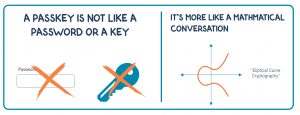
Despite the name, do not try to make a connection between passkeys and passwords, or like physical keys or locks. Passkeys are more like a very clever mathematical conversation.
When you create a passkey, your device (yes, your computer or phone) and the software managing your passkeys do the work for you. Together, they generate two very long, mathematically connected digital keys: a public key and a private key.
You don’t choose them. You don’t memorize them. In fact, you’ll probably never see the actual keys—and you won’t need to.
- The public key goes to the website where you’re setting up the passkey.
- The private key stays under your control, protected by your device or passkey manager.
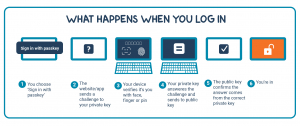
When you log in, the website sends your device a mathematical challenge. Your device uses your private key to create an answer. Then the website uses your public key to confirm the answer was created using your private key.
It’s a bunch of complicated math that I’ll never understand, so I’m not going to try. If you like to dig into elliptic curve cryptography, here’s a link for you!
So, what happens when I log in?
Let’s say you created a passkey for your bank.
Your bank already has your public key. Your private key is protected on your side.
When you try to log in, the bank essentially says:
“Prove that you have the private key that belongs with the public key I have.”
Your device uses your private key to create the mathematical proof the bank is asking for. The bank checks that proof using the public key.
If everything matches, you’re in.
Here’s the really important part:
Your private key doesn’t get sent to the bank.
Your device proves that it has the right key by providing the correct answer.
Wait…Then what’s my pin number for?
This was another thing that confused me.
Your fingerprint, face scan or PIN is how you tell your device:
“Yes, it’s really me. You have my permission to use my private key.”
That’s why you might click “Use passkey” and then your phone asks for a thumb print, scans your face, or your computer asks for a PIN.
The website isn’t getting your fingerprint or PIN. Your device is using it to verify you are there before it will use the private key it protects.
Why are passkeys more secure than passwords?
I was thinking this, and I know others are too.
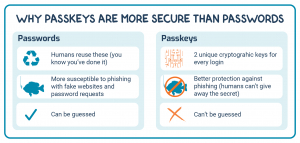
With a password, you know the secret and you give it to the website every time you log in.
That creates opportunities for things to go wrong.
You can reuse a password. Choose an easy one. Accidentally give it to someone. Have it stolen in a data breach. Or type it into a convincingly fake website.
Passkeys change that relationship.
In addition to the esoteric mathematical Q&A session taking place between your passkeys, you don’t know the private key, so you can’t accidentally tell it to someone. And you don’t send the private key to the website when you log in.
Passkeys are also connected to the website they were created for. That makes them much more resistant to phishing—the fake login pages designed to trick us into handing over our passwords.
In other words, passkeys take some of the security responsibility away from us humans.
Considering how many of us have used some variation of the same password since 1994, that may not be a bad thing.
Okay, but where is my passkey stored exactly?
This is where things can get confusing because we never really see our passkeys or have to engage with them.
The short answer: it depends on where you chose to save it when you created it.
Here are some examples of managers and where passkeys are stored:
Google Password Manager
→ tied to your Google Account and securely synced so you can use it on other compatible devices
Apple Passwords / iCloud Keychain
→ securely synced through your Apple account so it’s available on your Apple devices
Microsoft Password Manager
→ synced through your Microsoft account so you can use your passkeys on other supported devices
Windows / Windows Hello
→ stored locally on that particular Windows PC
1Password or another password manager
→ stored and managed by that service and, depending on the service, available across your devices
A physical security key
→ stored on a piece of hardware that looks like a USB drive on the outside, but it’s not one. It’s something very different.
So, despite the fact that you probably created your passkey while sitting in front of your computer, that doesn’t necessarily mean the private key is stored only on that computer.
Your computer or phone helps create the passkey, but where you choose to save it determines how the private key is protected and whether it can be available on your other devices.
This leads to another important question: where should I save my passkeys?
Google? Windows? Apple? A password manager? A physical security key? How should I decide?
If you’re like me and use a combination of a Windows computer, an Android phone, Chrome and a separate password manager, you may have more than one piece of software offering to manage your passkeys.But now might be our chance to get our digital life organized!
Or, perhaps you already use a trusted password manager across all your devices. Someone who lives almost entirely in Apple’s ecosystem may prefer Apple’s built-in system. Someone heavily invested in Google’s ecosystem may find Google Password Manager more convenient.
You should also think about what happens if you lose a device or it stops working.
If your passkeys are securely synced through a passkey manager, losing your phone or replacing your computer doesn’t necessarily mean losing access to your passkeys. You may be able to access them from another device or recover them through the system managing them.
A passkey stored only on one physical device is different. If that’s your only copy and the device is lost or damaged, you’ll need another way to access or recover that account.
So if the idea of your passkeys depending on one particular computer, phone or physical security key makes you nervous, a reputable passkey manager that securely syncs across your devices may make more sense for you.
Whatever you choose, understand how it syncs, how recovery works and what you’d do if your primary device disappeared.
Alright, it’s sort of making sense. But what if someone gets into my device?
Passkeys offer better protection against things like data breaches, fake websites and lucky password guesses. But protecting your devices is still important.
If someone gets access to your unlocked phone or computer, your saved passwords and passkeys could potentially be accessible—especially when your device or password manager doesn’t require another PIN, fingerprint or face scan before using them.
Keep your devices locked when you’re not using them, use a strong PIN or password, turn on fingerprint or facial recognition when available, and do not create passkeys on shared or public devices.
Passkeys make it harder for someone online to pretend to be you. You still need to make it hard for someone using your device to pretend to be you.
What about shared passwords at work?
This is where passkeys may require us to rethink an old workplace habit.
Many of us have shared a username and password with a coworker or contractor. Sometimes that happens because a service allows only one login. Sometimes it’s simply the quickest way to give someone access.
Passkeys make that arrangement less convenient.
A passkey is designed to prove that you are the person logging in.
Whenever possible, each person should have their own account with the permissions they need. For example, instead of giving a contracted web developer a shared username and password, you should create a separate user account for them and assign the appropriate access.
If the working relationship ends, then you can remove the developer’s access without changing a password that several people may know. Separate accounts also create a better audit trail. If something is changed or deleted, the service may be able to show which individual account performed the action.
Passkeys don’t guarantee that every account will be impossible to share. Some password managers and organizations have systems for sharing credentials, and some services still provide only one account for an entire team.
But passkeys reinforce a general rule:
One person → one identity → appropriate permissions.
Two-factor authentication has already made shared logins awkward. Passkeys push us even further away from that workflow by tying authentication to a credential protected on the user’s device or in that user’s passkey manager.
So if you’ve been sharing a password at work, don’t assume the answer is to share the passkey instead. First ask whether the service supports individual user accounts, delegated access or team permissions.
Are passwords going away?
Probably not tomorrow.
We’re in an awkward transition period.
Some websites let a passkey completely replace your password. Others use a passkey as an additional security check after you’ve entered your username and password. And plenty of websites still don’t support passkeys at all.
So we’ll probably be living in a world of passwords and passkeys for a while.
But there’s a reason companies are moving in this direction.
Passwords ask us to create, remember and protect secrets—and humans aren’t particularly good at that.
Passkeys let our devices handle the complicated part.
The easiest way I’ve found to think about it is this:
With a password, you prove to a website that you know a secret.
With a passkey, your device proves to the website that it has the right secret—and you prove to your device that you’re you.
You don’t have to understand the math. You don’t have to memorize another 16-character password. And you don’t even have to see the key.
You just need to know who’s keeping it for you.